
In this manual, we explain how to change the password for an email address. Both the tenant admin (reseller/partner) and end user(s) can do this themselves. The tenant admin does not need to know the current password for the email address, but the end user must know it in order to change it. We explain the two methods below:
Tenant admin (reseller/technical manager)
Step 1: Log in by going to “mail.yourdomainname.com.” (Note: replace “yourdomainname.com” with your own domain name)
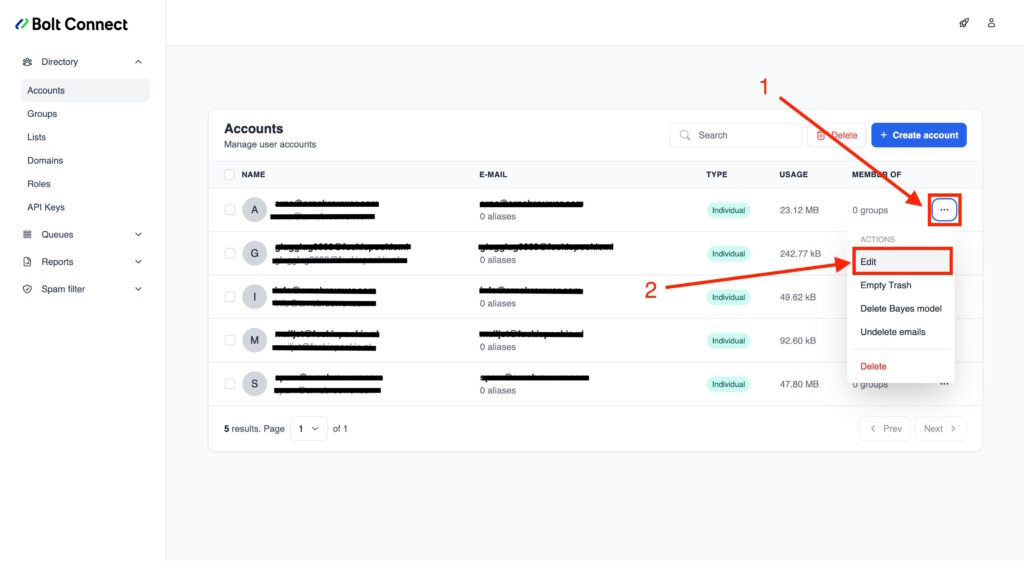
Step 2: Click on the three dots behind the email address for which you want to change the password, then click on “Edit”.
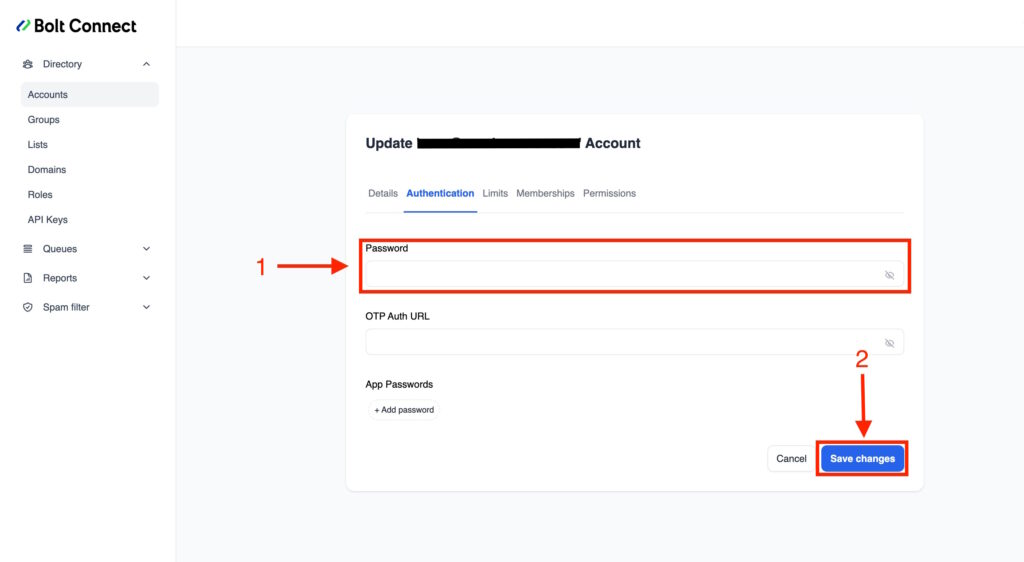
Step 3: Now you can enter a new password in the “Password” field, then click “Save changes” to save the new password.
You have now saved the new password! If you have set up the email address somewhere, you must now enter the new password there.
End users
Step 1: Log in by going to “mail.yourdomainname.com.” (Note: replace “yourdomainname.com” with your own domain name.)
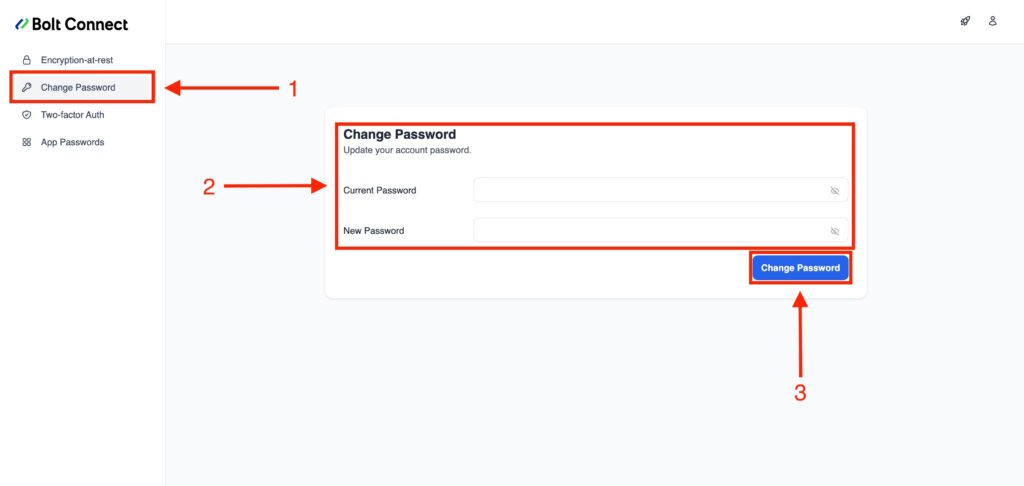
Step 2: In the left-hand menu, click on “Change Password”, then enter your old/current password and your new password below it. Now click on the blue “Change Password” button to save the new password.
You have now saved the new password! If you have set up the email address somewhere, you must now enter the new password there.